
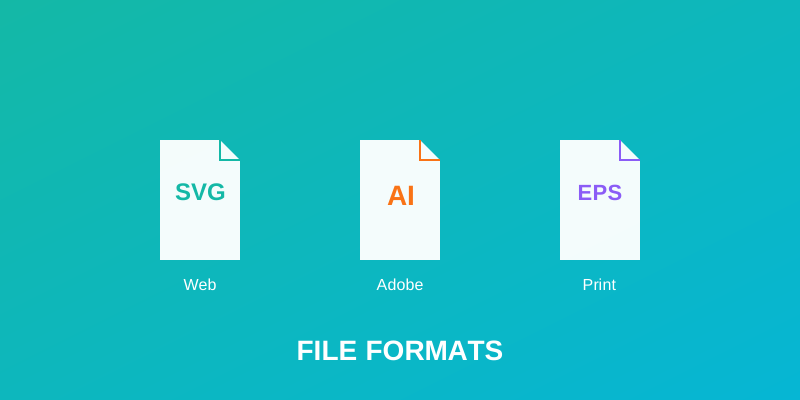
Vector Formats for Screen Printing: SVG vs AI vs EPS
Different vector formats are optimized for different purposes. Understand when to use SVG, AI, EPS, and PDF to ensure your design prints correctly.
Quick Answer
Use .AI as your primary format, EPS as backup:
Adobe Illustrator (.AI) is the professional standard. If the print shop can't open AI, send EPS. SVG is for web graphics only. Always ask the print shop what formats they accept.
Detailed Format Comparison
Industry Standard
Adobe Illustrator (.AI)
Your primary format for all professional print work
Advantages
- ✓Industry standard for print shops
- ✓Full feature support including effects and blend modes
- ✓Preserves all layer information
- ✓Supports CMYK color mode natively
- ✓Excellent for complex designs
- ✓Spot colors and Pantone colors fully supported
Disadvantages
- ✕Requires Adobe Creative Cloud (expensive)
- ✕Large file sizes for complex designs
- ✕Not all printers are compatible with latest versions
- ✕Proprietary format tied to Adobe
Industry Standard
EPS (Encapsulated PostScript)
Backup format for maximum compatibility
Advantages
- ✓Universal compatibility across all print software
- ✓Industry standard for large format printing
- ✓Excellent for vinyl cutting and engraving machines
- ✓Works with older print software reliably
- ✓File size stays small
- ✓Maintains vector quality indefinitely
Disadvantages
- ✕Can't edit layers easily (limited layer support)
- ✕Some modern design elements not supported
- ✕Text handling can be tricky
- ✕Older format, being phased out in some applications
PDF (Vector-Based)
Backup format and for sharing with non-designers
Advantages
- ✓Near-universal compatibility
- ✓Small file sizes
- ✓Good for proofing and sharing
- ✓Can include interactive elements
- ✓Doesn't require design software to open
- ✓Works on all operating systems
Disadvantages
- ✕Easy to accidentally save as image PDF instead of vector
- ✕Limited color mode options
- ✕Fonts may substitute unexpectedly
- ✕Layer information lost in PDF conversion
- ✕Some print software struggles with vector PDFs
SVG (Scalable Vector Graphics)
Web graphics only, ask print shop before submitting
Advantages
- ✓Open-source, free format
- ✓Native web format (modern browsers support it)
- ✓Small file sizes
- ✓Can be edited with code
- ✓Growing support in modern software
- ✓No licensing issues
Disadvantages
- ✕Limited support in traditional print software
- ✕Color space handling differs from print standards
- ✕Many print shops can't open SVG files
- ✕May require conversion before printing
- ✕Limited support for advanced print effects
- ✕Not industry standard for print
File Size Comparison
For the same complex screen printing design (50 colors, detailed artwork):
EPS remains the smallest, making it ideal for large designs. SVG is smallest but offers limited print support.
Format Selection by Use Case
Screen Printing (T-Shirts, Hoodies)
Best: .AI
Screen printing shops standardized on Adobe software. Submit .AI with EPS backup. Color separation is crucial – CMYK only.
Embroidery Machine Files
Best: .EPS or .AI
Convert to embroidery-specific formats (PES, JEF, EXP). Submit vector source as EPS/AI for editing. Embroidery software will convert to stitch files.
Vinyl Cutting & Die-Cutting
Best: .EPS
Cutting machines prefer EPS. Check with vendor for specific requirements. Silhouette and Cricut machines accept various formats.
Large Format Printing
Best: .PDF or .EPS
Large format printers prefer PDF or EPS for compatibility with RIP software. AI works too if they have Adobe CC.
Web & Digital Use
Best: .SVG
SVG is native to web browsers. Use AI or EPS for source files, export to SVG for web. Never submit SVG to print shops.
Laser Engraving & Cutting
Best: .EPS or .PDF
Laser systems work best with EPS or vector PDF. Check specific machine requirements – some accept AI directly.
How to Export Each Format Correctly
Exporting as AI (Adobe Illustrator)
- 1. File → Save As
- 2. Format: Adobe Illustrator Document (.ai)
- 3. Click "Save" (use default settings)
- 4. AI Options dialog appears – click "OK" to use defaults
This preserves all editing capability. Print shops can open and modify if needed.
Exporting as EPS
- 1. File → Export As
- 2. Format: EPS (.eps)
- 3. Click "Export"
- 4. EPS Options: Choose "PostScript Level 3" and "CMYK"
- 5. Click "OK"
Uncheck "Include Linked Files" unless specifically needed. PostScript Level 3 offers best compatibility.
Exporting as Vector PDF
- 1. File → Export As
- 2. Format: PDF (.pdf)
- 3. Click "Export"
- 4. PDF Options: Uncheck "Preserve Illustrator Editing Ability"
- 5. Compression: Choose "None" for quality
- 6. Click "Export PDF"
Make sure you're saving as vector PDF, not image PDF. Check that objects are selectable in the PDF viewer.
Common Mistake: Saving as Image PDF
If you export to PDF without vector options, it creates an IMAGE PDF (raster), not a vector PDF. Print shops will reject this.
How to check: Open the PDF, try to select text or objects. If you can select them, it's vector. If you can't, it's an image.
Software Compatibility Matrix
| Software | AI | EPS | SVG | |
|---|---|---|---|---|
| Adobe Illustrator | ✓ | ✓ | ✓ | ✓ |
| Adobe InDesign | ✓ | ✓ | ✓ | ✓ |
| CorelDRAW | △ | ✓ | ✓ | △ |
| Flexi (Screen Print) | ✓ | ✓ | ✓ | ✗ |
| RIPworks Pro | ✗ | ✓ | ✓ | ✗ |
| Inkscape | △ | ✓ | ✓ | ✓ |
| Mac Preview | ✗ | ✓ | ✓ | ✓ |
✓ = Full support △ = Partial/Limited support ✗ = Not supported
Related Articles
Continue learning with these related guides