
How to Prepare Vector Files for Print Shops: Complete Guide
Print shop owners often reject files because they're in the wrong format or lack critical specifications. Learn exactly how to prepare vector files that print shops will accept on the first submission.
Why Proper File Preparation Matters
When you hand a print shop a poorly prepared file, it creates extra work and delays your project. Print shops receive dozens of files daily, many of which can't be used as-is. The ones that are ready to go? Those get prioritized and printed faster.
Understanding what print shops actually need – not what you think they need – separates professionals from amateurs. This guide covers the technical requirements that will get your files accepted by any print shop on your first submission.
1. Choose the Right File Format
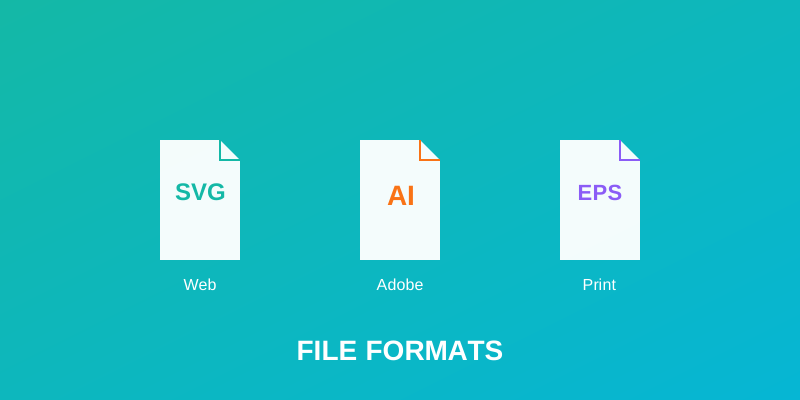
Adobe Illustrator (.AI) – Best Choice
Industry standard. Print shops have Adobe CC and expect .AI files. Preserves all layer information and supports CMYK color mode natively.
Use for: Screen printing, embroidery, die-cutting, engraving
EPS (Encapsulated PostScript) – Professional Standard
Universal format that works with virtually all print software. Excellent for large format printing and industrial equipment. Maintains vector quality indefinitely.
Use for: Large format printing, vinyl cutting, industrial applications
PDF (Vector-Based) – Good Backup
When exporting as vector PDF (not image PDF). Universal compatibility. Always provide both .AI and PDF.
Use for: Sharing with non-Adobe users, proofing
SVG (Scalable Vector Graphics) – Check First
Not all print software supports SVG. Always ask the print shop if they accept SVG before using it. Many older print shops can't open this format.
Pro Tip: Always provide files in multiple formats. Submit .AI as your primary file, with EPS and PDF as backups. This prevents format compatibility issues.
2. Set Correct Color Mode
Rule: Use CMYK for print, RGB only if specified
This is the #1 mistake that causes rejections. Your monitor displays RGB, but print shops use CMYK.
CMYK (Cyan, Magenta, Yellow, Black)
- Standard for offset printing
- Used by most commercial print shops
- Colors will print exactly as shown in CMYK preview
RGB (Red, Green, Blue)
- Only use if print shop specifically requests it
- Will print incorrectly if converted automatically
- Digital printing can accept RGB (ask first)
Converting RGB to CMYK: In Adobe Illustrator, go to File → Document Color Mode → CMYK. Spot colors (like Pantone) are separate – use these if specified by the print shop.
3. Convert Fonts to Outlines
Critical: Print shops may not have your fonts
If you use a font the print shop doesn't have, they'll substitute it with a different font – and your design changes. Always convert text to outlines (paths) before sending.
How to convert fonts to outlines in Adobe Illustrator:
- 1. Select all text (Ctrl+A or Cmd+A)
- 2. Type → Create Outlines
- 3. Text is now vector paths and can't be edited
Do this as a final step before saving. Keep a backup file with editable text in case you need changes later.
4. Organize Your Layers
Well-organized files make a print shop's job easier – and they'll remember you for next time.
Best Practices:
Name layers descriptively
"Base Design" instead of "Layer 3"
Group related elements
Keep all text together, all graphics together
Delete unused layers
Clean files are professional files
Lock final artwork
Prevents accidental changes during review
5. Technical Requirements Checklist
No embedded images
Convert all photos/raster images to vector or save as separate linked files
Minimum stroke weight 0.5pt
Lines thinner than 0.5pt may disappear in production
No transparency/opacity
Print shops can't print transparency – flatten or use solid colors
Proper resolution noted
Vector files don't need resolution, but specify DPI if raster elements included
Bleed and margins included
Ask print shop for bleed requirements (usually 0.125" to 0.25")
6. Use Professional File Naming
Good:
- Logo_VectorGurus_FINAL.ai
- TShirtDesign_2025_CMYK.ai
- BusinessCard_PrintReady.pdf
Bad:
- logo_final_FINAL_v3_FINAL.ai
- design.ai
- FILE (1).pdf
Use clear, descriptive names with the file format. Avoid special characters and avoid multiple "final" versions. Version control saves headaches.
Final Pre-Submission Checklist
Related Articles
Continue learning with these related guides